General: The URP27 Post Approval Documentation (PAD) will be transmitted via DocuSign. A memo with all attachments will be sent prior to the emailing of the PAD. The PAD will be sent in a set order with the Project Administrator, identified on page 1 of the submitted application, receiving the PAD first to complete the document and upload the attachments. It will then be routed to the Chief Administrative Official (CAO), identified on page 1 of submitted application, for signature. The CAO will designate their witness in DocuSign. This document describes that procedure in detail. The PAD must be completed via DocuSign and should not be mailed or emailed to the NC Housing Finance Agency. The URP27 PAD is due by 5:00 PM, May 29, 2026. At this time, case managers have not been assigned. Once your PAD is submitted via DocuSign, it will be assigned to a case manager and you will be notified who your case manager will be for the project. Please do not submit the PAD prior to April 3, 2026.
- Project Administrator (PA)
- After opening from the email, the PA will fill in the blue fields. The fields are as follows:
- B—Local Matching Funds—confirm the PAD amount for each source of funds. If the amount is $0, type in $0.
- E—Service Area Requirements—confirm the number of units and repair funds for each county/service area. Only the awarded service areas will be listed. If you applied for a county and do not see it listed, it was not awarded for URP27. The proposed units listed are what was listed in the application or have been adjusted based on an adjustment to your allocation.
- G—Fiscal Year and Audits—confirm the start and end date of your organization's fiscal year (i.e., July 1 to June 30 or January 1 to December 31).
- All fields must be completed to submit to CAO for signature.
- Upload the required attachments.
A blue upload box will appear for each item that says "Attach".
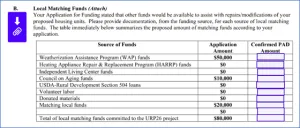
- To upload a file, click the blue button next to the corresponding item. Click "Upload a File" to select the item, browse to select, and then "Okay". The file(s) will show up in this dialog box once it's uploaded.
- Some items, such as Organizational Documents, might require multiple documents to be uploaded. You can PDF them together or you can upload them individually to the same dialog box.
Once an item has been uploaded, the blue icon will turn gray.
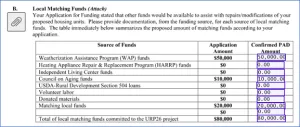
- Any Word documents uploaded will be converted to a PDF. Once your case manager is assigned, they might contact you by email to request the Word document sent for easier editing.
All blue attachments must be uploaded (indicated by the gray icon) in order for the PA to finish and submit to the CAO for signature.
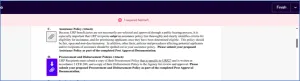
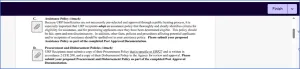
- At any time, you can download the PAD. The download will include fields you have completed and documents you have uploaded. Choose to download the document separately (each attachment will be its own item) or combined (everything in one PDF).
- After opening from the email, the PA will fill in the blue fields. The fields are as follows:
- Chief Administrative Official (CAO)
- CAO will not receive an email from DocuSign until the PA has completed their part. Once the fields are completed and documents uploaded, DocuSign will route the PAD to the CAO for signature.
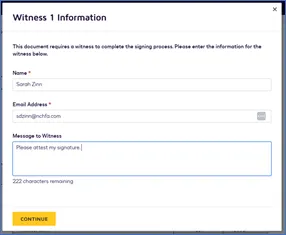
After opening DocuSign from email, a dialog box will open asking for the contact information for the CAO's witness/attest. Type the name and email for the person that will be attesting the CAO's signature in this box. Click "Continue".
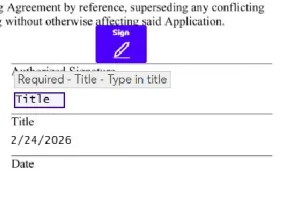
DocuSign will then allow you to apply your signature. Apply the signature at the indicated location. On the next line, there will be an empty field for you to type your title. If you hover over the field, a note will pop up instructing you to type in your title.
- Click "Finish". The document will now route to the person you listed for attesting/witnessing your signature.
- CAO Witness/Attest
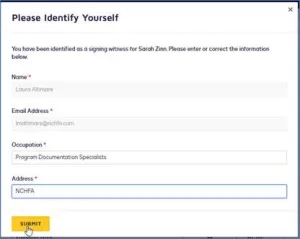
When you open link from the DocuSign email, a dialog box will open asking for your identifying information. For the address, type in the name of the organization you work for.
- Once completed, apply your signature. Your title should pull from the information initially typed in. If not, you'll need to type in your title on the next line.
- Click "Finish".
Once the PAD has been signed by both the CAO and the witness, all parties, including the PA, will receive an email that the document has been completed. The PA should download all documents (either combined or separate) and save a copy in the project file. The Agency will assign your project to a case manager and you will receive notification of you case manager. If you have any questions during the PAD process, please contact Sarah Zinn, 919-578-3580 or Michael Handley, 919-877-5627.